Arcane
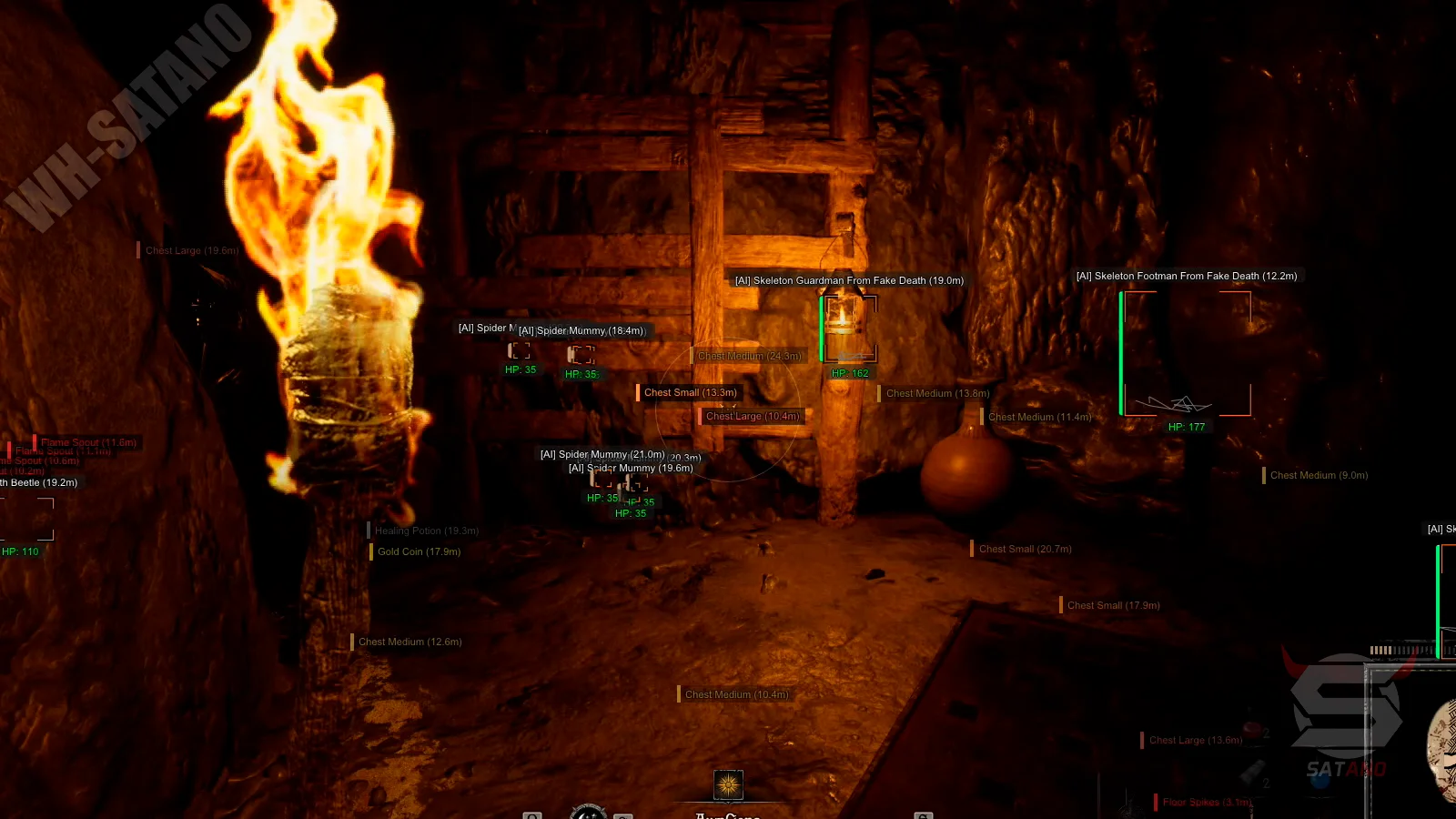
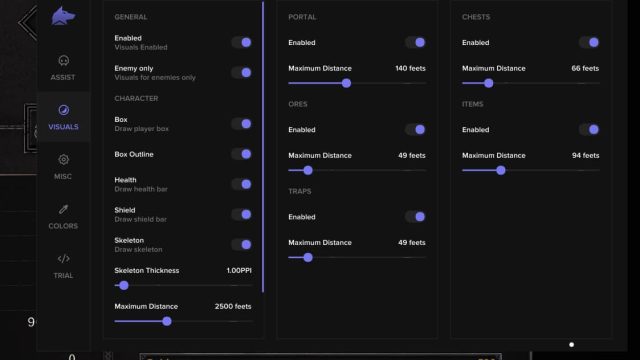
Arcane brings magic to the gloomy dungeons of Dark and Darker: its ESP with Dark Vision mode highlights enemies, chests and traps through stone walls and fog, a resource tracker marks ores and magical artifacts on the map, and technology Shadow Veil encrypts game data, bypassing driver–level anti-cheats – you silently clear dungeons of undead, outsmart PvP raiders and evacuate with valuable relics, remaining invisible to the system even in hardcore modes.
How to install
ARCANE instructions
IMPORTANT READING!
Requirements before activating the key:Loader: Download
- Install this: *link*
- Read the instructions carefully
- Restart your computer before starting the software (required)
We remind you that using software is always a risk!
- You purchase the software at your own peril and risk.
- Undetected status does not guarantee 100% protection from blocking (with any software in any game a ban is possible).
- If there is an update in the game, wait for the software update.
- Use any game-based software at your own risk.
DISABLE or REMOVE MANDATORY
- Remove antivirus
- Disable SmartScreen
- Disable Windows Defender
- Remove FaceIt and Vanguard
FaceIt is a separate anti-cheat for the game CS:GO
Vanguard is an anti-cheat for Valorant
Preparation before activating the key:
- Make sure you are using an Nvidia or AMD graphics card.
- If you have Nvidia:
- Install Geforce Experience (Nvidia App does not work, remove if it does not work)
- Perform authorization
- Install the latest version of your video driver
- Enable Nvidia overlay - If you have AMD:
- Install AMD Software: Adrenalin Edition (PRO does not work)
- Install the latest version of your video driver
- Activate the in-game overlay in the settings
- In the performance tab, enable performance display - Unlock Intel Rapid Storage Technology in BIOS
- Install this: link
Startup instructions:
- Download the loader and place it anywhere (it is advisable to create a separate folder for it)
- Run the software file as administrator.
- Wait for the loader to update and run it again.
- Enter your key and press "Enter" (To enter the key into the loader, after copying it, use the right mouse button in the CMD loader)
- Click "Yes" if you need to clear traces of previous bans
- Click "Yes" if you need a spoofer
- The loader will automatically close after successful loading
- Launch the game.
- The menu will appear automatically.
You can open / close the menu with the "Home or Insert" key
For Unturned, the menu opens with the "DEL" key
For PUBG, the menu is on Insert, and you can only see it in the match (the menu is invisible in the lobby). The menu is also controlled using the arrow keys.
To unload the software, use the "END" key
Errors and their solutions:
- The loader closed without errors:
- Install this: *link* - There is a menu in the game, but you can't interact with it
- Run the overlay as an administrator according to the instructions above. - Ошибка "Make sure all antiviruses are disabled" Windows 10:
- Remove all third-party antiviruses
- Disable real-time protection
- Disable SmartScreen - Ошибка "Make sure all antiviruses are disabled" Windows 11:
- Download both files: *link*
- Run Turn_ON, agree to the changes in the registry, restart the PC
- Then run Turn_OFF, agree to the changes in the registry, restart the PC
- If this does not help, check that you have uninstalled the antivirus and also disabled real-time protection - Other errors caused by the loader:
- Send a screenshot of the error to support on the website (lower right corner), download Anydesk and also send it to the support chat. - You see the menu, but it is not clickable:
- Run Steam NOT as administrator
- Disable all third party overlays (keep only Nvidia or AMD depending on your graphics card) - The menu disappears in the game or there is a menu, but visual functions do not work:
- If there was a patch in the game, wait for the product update
- Check the integrity of the game files, but it is best to perform a complete reinstallation
- If none of the solutions helped you, contact support chat - The menu in the game is not clickable / does not open the first time:
- Run Steam WITHOUT admin rights (if you play through Steam).
- Disable the EA App overlay in the application settings (if you play through the EA App). - AES instruction set is not supported:
- This error means that the processor does not support the AES instruction set, so it cannot be fixed. Contact us for a refund. - Please enable Intel VT-X in the BIOS:
- To fix this error, go into the BIOS and find the feature called "Intel virtualization technology" or "Intel VT-X" and enable it. - Please enable AMD-V in BIOS:
- To fix this error, go into BIOS and find the feature called "AMD-V" or "SVM mode" and enable it. - Please disable secure boot in the BIOS:
- To fix this error, enter the BIOS and disable the Secure Boot feature. - Unsupported firmware:
To fix this error, convert your operating system disk to GPT format using the built-in Windows mbr2gpt tool or any other disk management utility of your choice. - Secure boot keys are incorrect and need to be enrolled:
To fix this error, enter the BIOS and enable Secure Boot, save the settings, make sure you have enabled it correctly by opening PowerShell and typing "Confirm-SecureBootUEFI", if the result is "True" you can restart your computer, then enter the BIOS and disable Secure Boot. - VMX/SVM is not supported:
To fix this error, go to Control Panel -> Programs and Features -> Turn Windows features on or off and make sure that "Virtual Machine Platform" and "Hyper-V" are disabled. If the error persists, open cmd as an administrator and type the following command without quotes "bcdedit /set hypervisorlaunchtype off", then press Enter and restart your computer. - Incorrect hwid
- Open cmd as administrator, enter the following commands one by one
wmic diskdrive get Caption, SerialNumber
wmic baseboard get SerialNumber
If none of these commands fail, then something is wrong with your PC, try reinstalling Windows and see if the problem goes away. - If you encounter any other problems, please contact support on the site.
0.0
0 reviews
Для этой же игры
Similar products
Fecurity
- 1 д
- 7 д
- 30 д
Write a review